Run the LEZ wallet app and initiate native token transfers
Use the wallet app to set up accounts and try every type of native token transfer on the LEZ testnet.
This document is accurate for Testnet v0.3.0.
The wallet app is a simple entrypoint for getting started on the LEZ. This procedure walks you through running the wallet app, syncing it with the public LEZ testnet, creating accounts, executing all combinations of public, private, shielded, and deshielded native token transfers, and withdrawing tokens to the L1 through the bridge. The LEZ testnet runs the centralised LEZ sequencer, which processes the transactions the wallet app submits, while the wallet app itself manages your accounts locally and can execute transfers with any combination of private and public accounts.
This page describes the LEZ Wallet app version 1.2.0 (lez_wallet_ui), which requires the lez_core module version 0.5.0 or later.
Recovering a wallet from its recovery phrase is not yet supported.
- Logos Basecamp installed and running on macOS (Apple silicon) or Linux (x86-64 or ARM64) only.
What to expect
- You can run the wallet app in Logos Basecamp or locally, and sync it with the live LEZ testnet.
- You can create and name public and private accounts, and fund them to test transfers.
- You can complete public, private, shielded, and deshielded token transfers, verify finalisation on the L1, and withdraw tokens to the L1.
Run the wallet app in Basecamp
- At the bottom of the sidebar, click Applications.
- Select
Walletin Categories, or search forLEZ Wallet, then click the LEZ Wallet card. - In the Add Application dialogue, click Install. Install also installs the
lez_coremodule listed under Required Packages. - Wait until the button changes to Launch, then click it. A LEZ Wallet icon appears in the sidebar, so you can reopen the wallet from there later.
To install packages one by one instead, see Install and load a module in Basecamp.
Set up and sync the wallet app
This task creates your wallet and syncs it with the LEZ testnet.
-
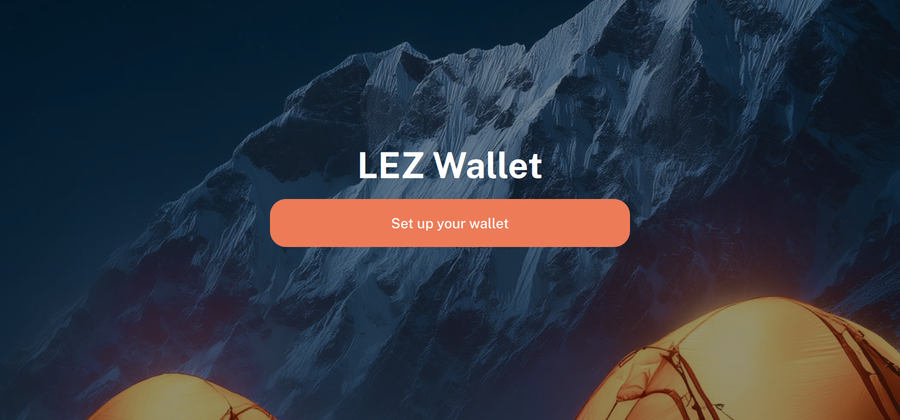
On the LEZ Wallet welcome screen, click Set up your wallet.
-
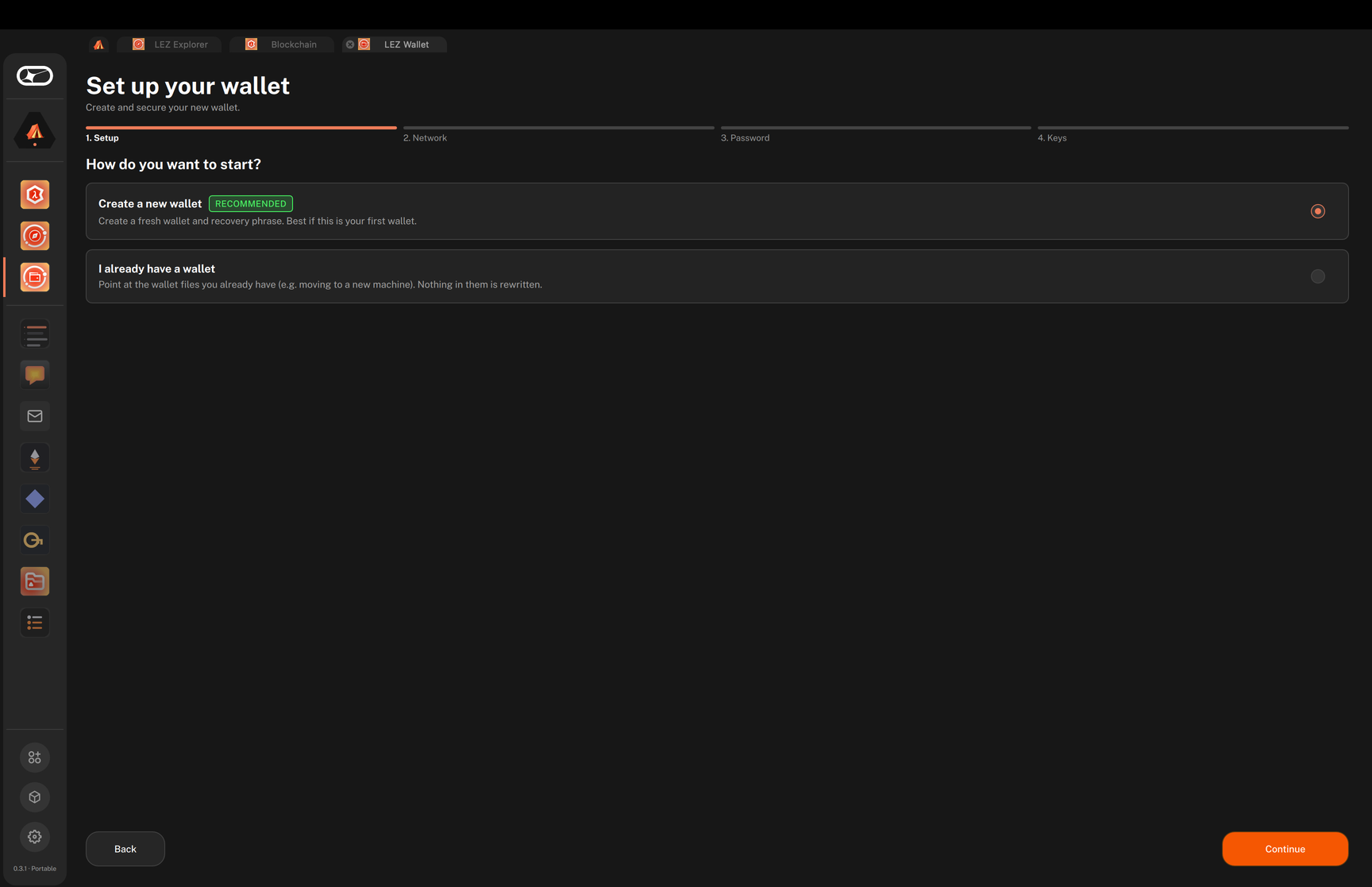
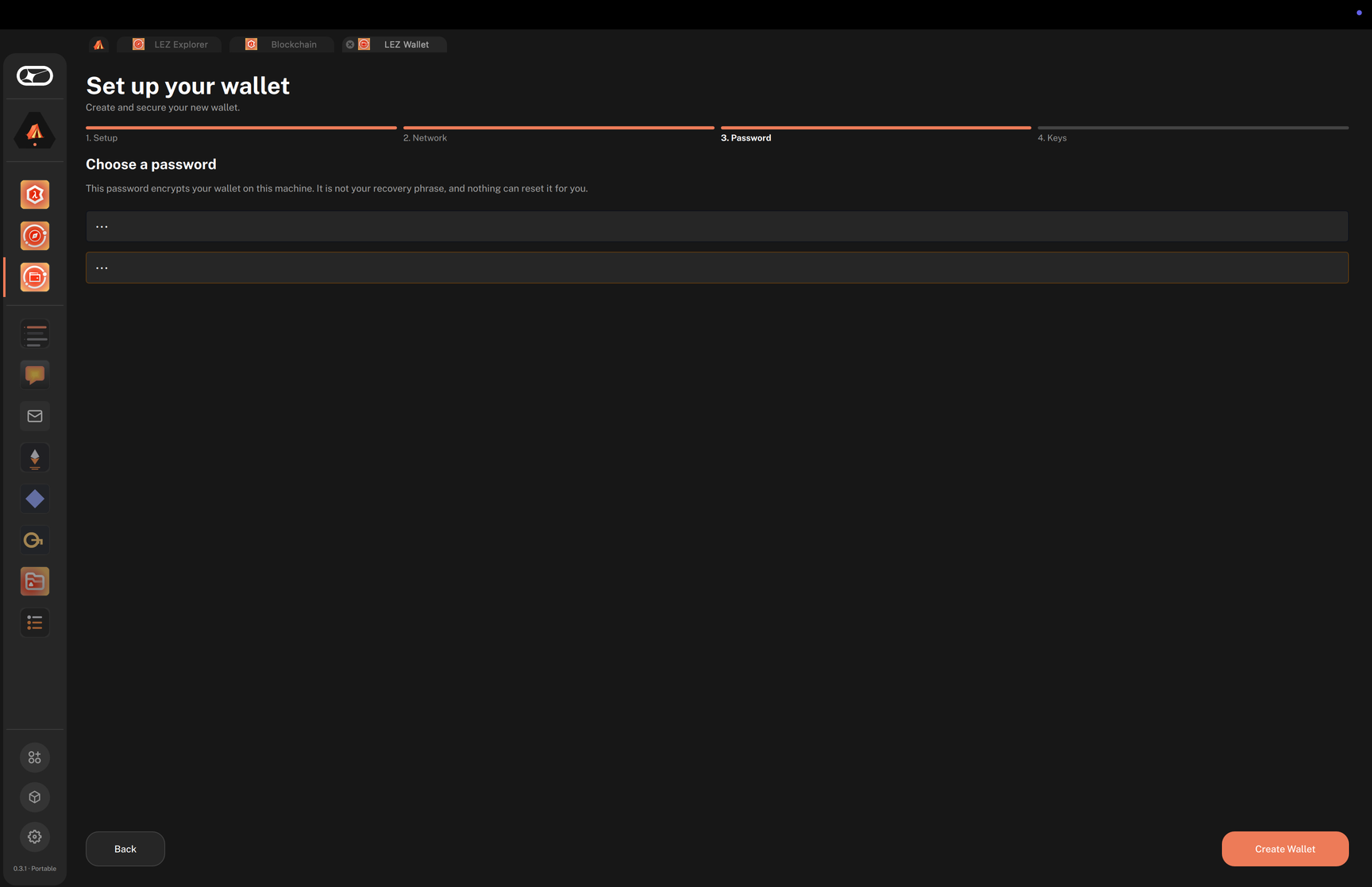
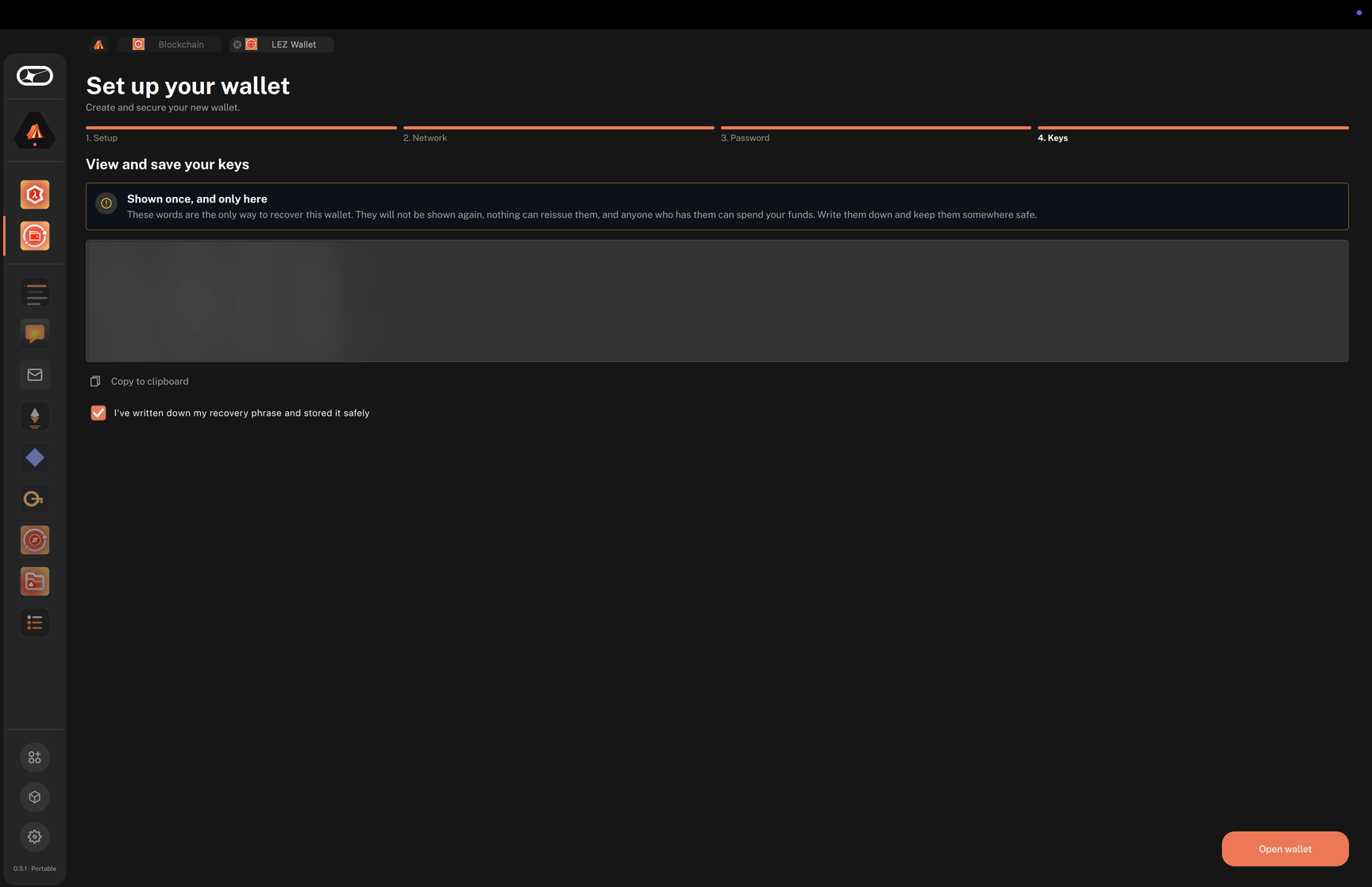
Follow the four steps of the Set up your wallet wizard:
-
Setup: select Create a new wallet and click Continue. To reuse wallet files you already have, select I already have a wallet instead, choose your Storage file and Config file, and click Open Wallet.
-
Network: keep the Testnet preset (
https://testnet.lez.logos.co) and click Continue.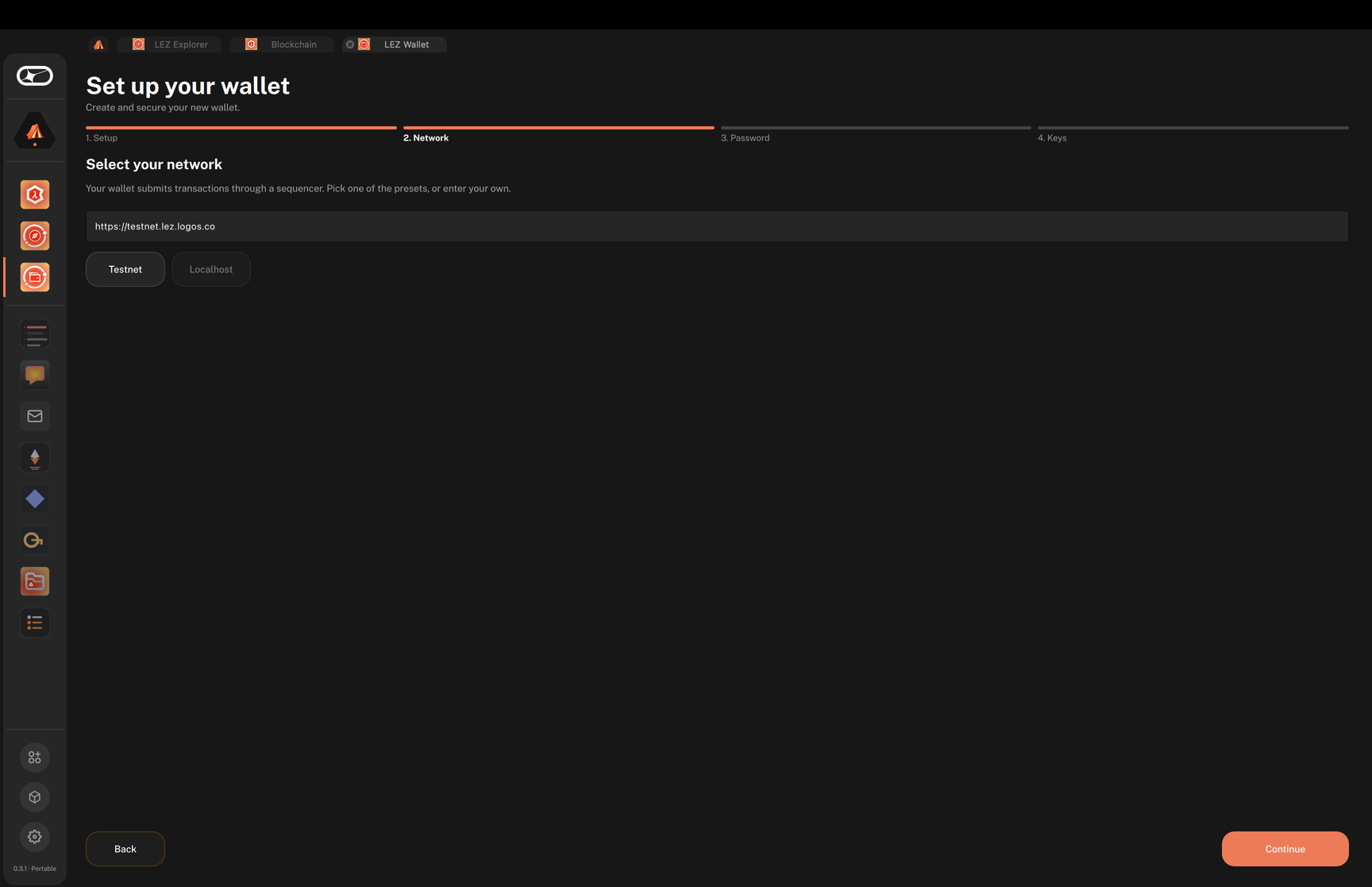
-
Password: enter a password in both fields and click Create Wallet. The password encrypts the wallet on this machine; it is not your recovery phrase.
-
Keys: write down the 24-word recovery phrase, which is shown only once, tick I've written down my recovery phrase and stored it safely, and click Open wallet.
-
-
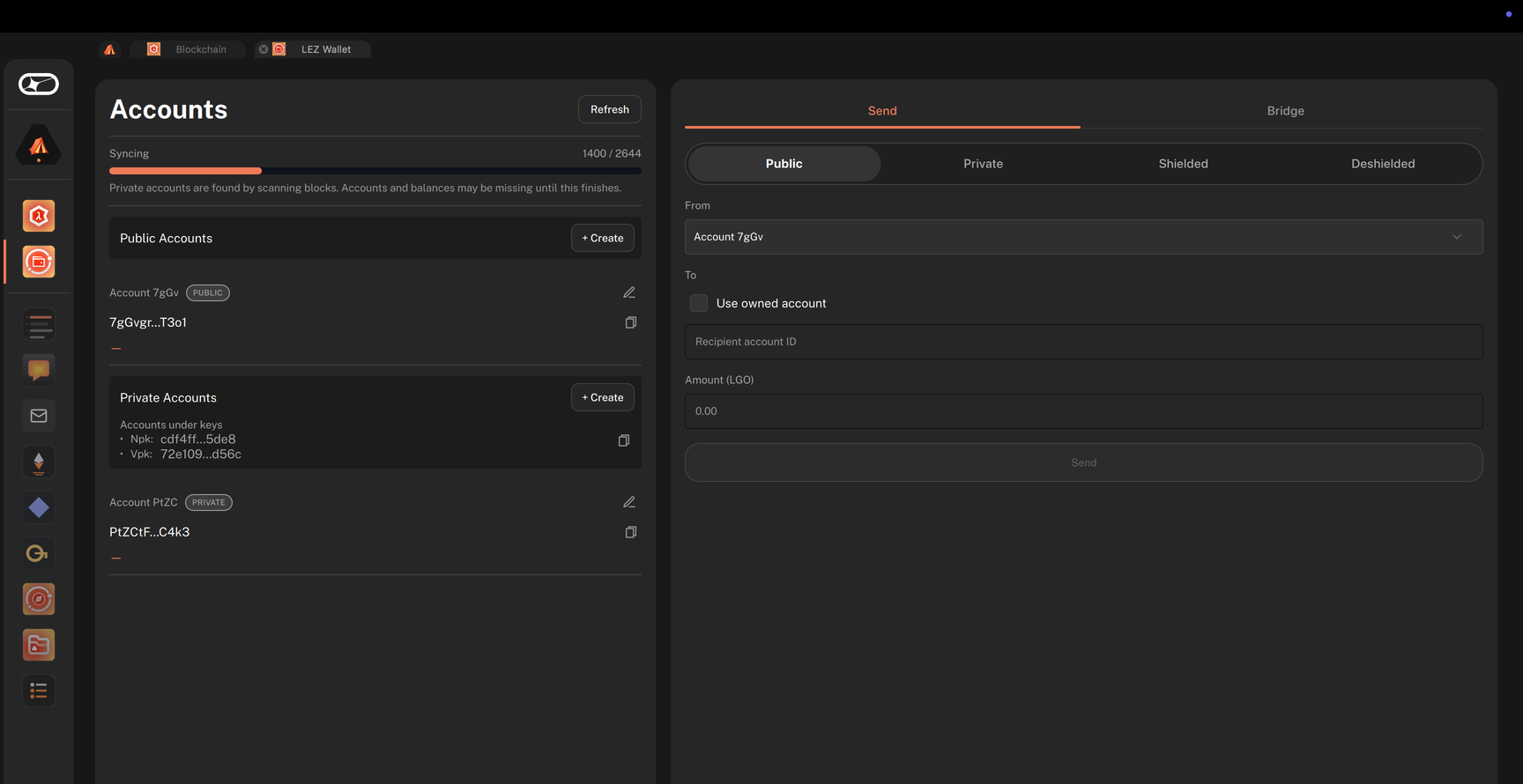
Wait for the wallet app to sync with the testnet. The wallet finds your private account values by scanning blocks, so accounts and balances may be missing until the sync finishes.
While it syncs, the Accounts panel shows Syncing with the number of blocks processed and a progress bar. This can take a few minutes. When the sync finishes, the panel briefly shows Up to date · block followed by the current block height.
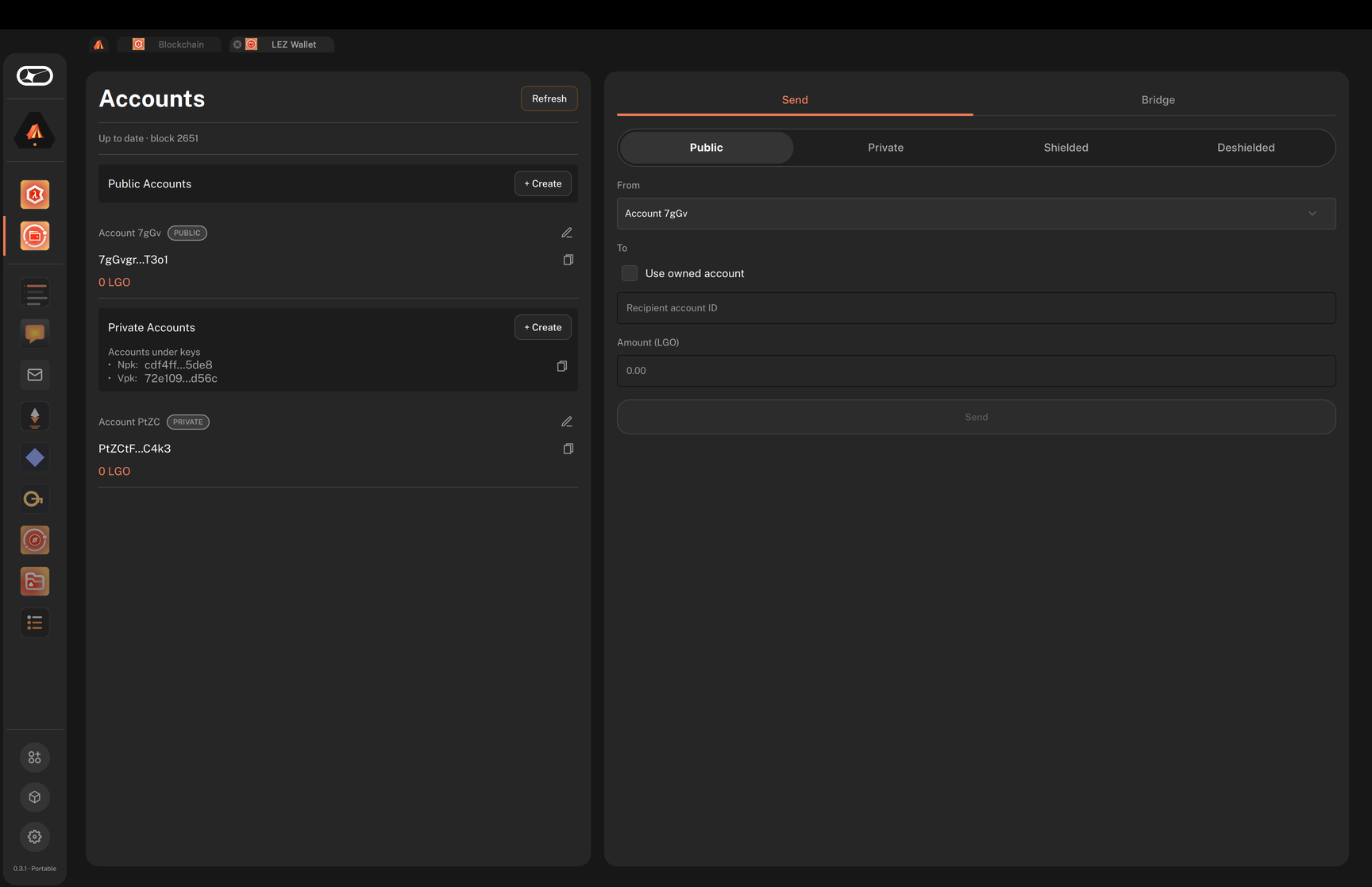
To sync again and reload balances later, click Refresh in the Accounts panel.
Create a new public account
A new wallet starts with one public account and one private account, both empty. Accounts you create are controlled only by you, and you need a funded account before you can send a transfer.
-
In the Accounts panel, click + Create next to Public Accounts. If your account list is empty, click + Public account instead.
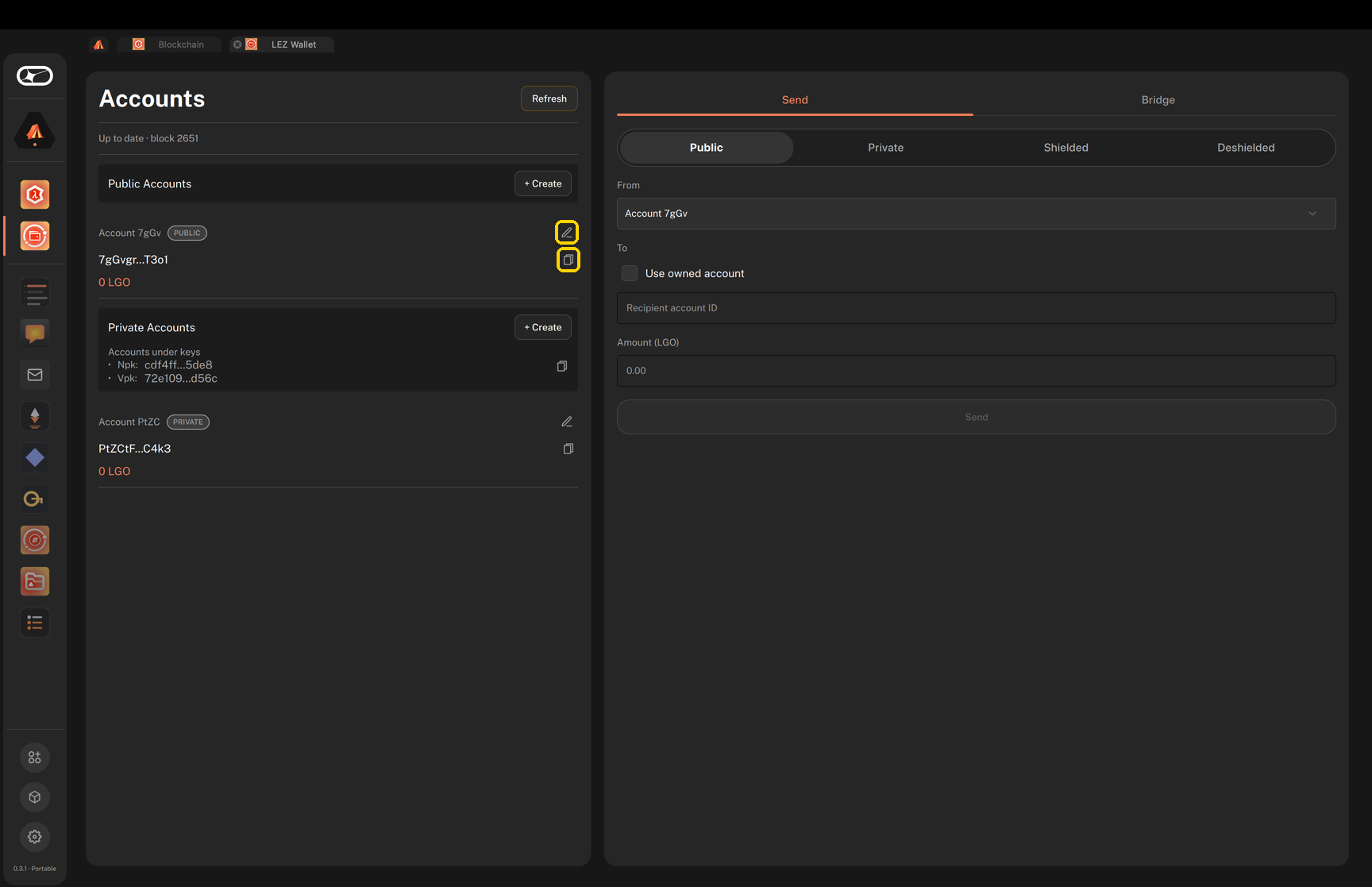
The new public account appears in the account list with its account ID and balance in TestToken. The edit (pencil) and copy buttons sit on the right of each account.
-
Optional: to name the account, click the edit (pencil) button next to it, enter a name in the Add name dialogue, and click Save. Each name must be unique in the wallet, and the edit button shows only on accounts that don't have a name yet.
-
Fund the account. Next to the account, click the copy button to copy its account ID, then have another testnet user send TestToken to it, or bridge tokens from the L1.
Send a public transfer
This task moves tokens from a funded public account to another public account.
-
In the transfer panel, select Send, then select the Public tab.
-
In the From field, choose a public account with a positive balance.
-
In the To field, either paste the recipient's account ID, or tick Use owned account and choose one of your own public accounts.
-
In Amount (TestToken), enter the amount to send.
-
Click Send.
A result line displays below the Send button and reads
Success. Tx:followed by the transaction hash. Use its copy button to copy the hash for the next task.
Verify L1 finalisation
-
In your browser, navigate to
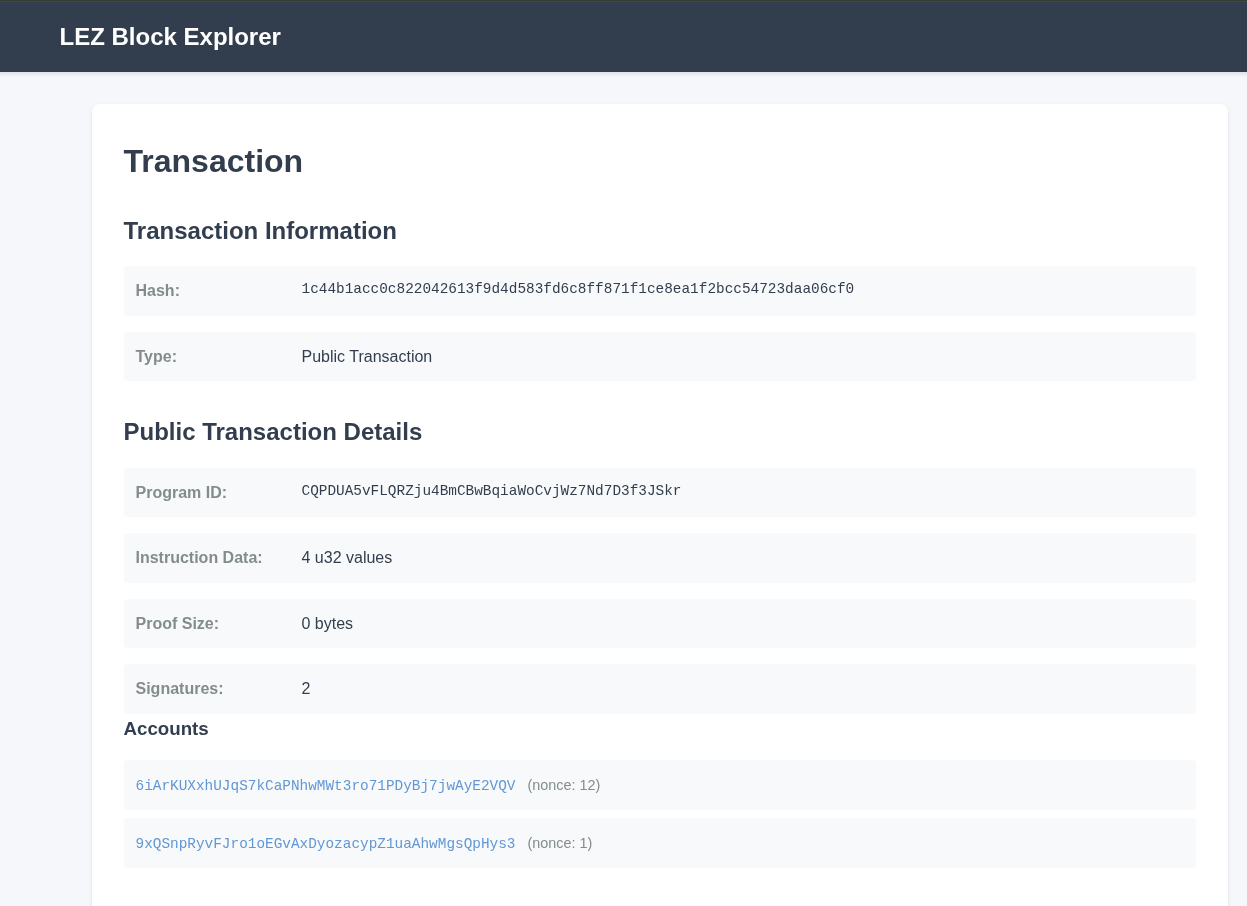
https://explorer.testnet.lez.logos.co/transaction/<TX_HASH>, replacing<TX_HASH>with the transaction hash from the previous task.The explorer shows only LEZ blocks that are finalised on the L1, so the transaction details display about an hour after the transfer. Until then, the page cannot find the transaction. You can also paste the hash in the search box on the LEZ block explorer home page.
Try private, shielded, and deshielded transfers
Repeat the create-account and transfer tasks for the other account types and transfer flows. Each of these transfers generates a proof, and the transfer panel shows Generating proof, please wait… until it finishes.
- Create one or more private accounts: click + Create next to Private Accounts, or + Private account if your account list is empty.
- On the Private tab, send a private transfer from a private sender to a private recipient.
- On the Shielded tab, send a shielded transfer from a public sender to a private recipient.
- On the Deshielded tab, send a deshielded transfer from a private sender to a public recipient.
Each transfer shows Success. Tx: followed by its transaction hash below the button. To check its status, look it up on the explorer as in Verify L1 finalisation, and expect the same delay of about an hour.
To send to one of your own accounts, tick Use owned account and choose the recipient. To send to a private account in another wallet, paste the recipient's public keys as JSON with nullifier_public_key and viewing_public_key. To share your own private keys, click the copy button next to Accounts under keys in the Private Accounts section.
Withdraw tokens to the L1
The Bridge section withdraws native tokens from one of your public accounts to a public key on the L1 (Bedrock). Only public accounts can send bridge withdrawals.
-
In the transfer panel, select Bridge.
-
In the From field, choose a public account with a positive balance.
-
In Bedrock (L1) public key, paste the recipient's Bedrock public key as hex.
-
In Amount (TestToken), enter the amount to withdraw.
-
Click Withdraw.
A result line displays below the Withdraw button. On success, it reads
Success. Tx:followed by the transaction hash.
Troubleshooting wallet app setup
Why doesn't the setup screen show?
The setup screen is skipped if the settings saved by the wallet app already list paths for the storage and config files, typically from an earlier run of the wallet app, and the wallet at those paths opens. If the saved files no longer exist, the wallet app forgets them and shows the setup screen.
The settings are stored under the organisation Logos and application ExecutionZoneWalletUI, whether the wallet runs in Basecamp or on its own. To see the setup screen again, quit the wallet app and remove the settings:
-
Linux: remove
~/.config/Logos/ExecutionZoneWalletUI.conf. -
macOS: run the following commands:
defaults delete com.logos.ExecutionZoneWalletUI 2>/dev/nullrm -f ~/Library/Preferences/com.logos.ExecutionZoneWalletUI.plistkillall cfprefsd
Why does creating a wallet fail with A wallet already exists at?
The wallet UI won't create a new wallet over existing wallet files. The error message names the existing storage file. To keep using that wallet, select I already have a wallet in the Setup step and choose that storage file and the config.json file in the same folder. To create a new wallet instead, move or remove those files first.