Move assets using the Logos Blockchain UI app
Get started with token transfers between wallet accounts directly from the dashboard UI.
This document is accurate for Testnet v0.3.0.
This procedure covers how to send funds from one of your wallet accounts to a recipient on the Logos Blockchain using the Transfer form of the Logos Blockchain UI app. It is intended for users who need to move tokens between accounts without using the CLI or crafting transactions manually.
- The Blockchain UI app running, with a node set up.
- At least one wallet account with a positive balance, for example one funded by mining.
- The recipient's 64-hex-character public key.
What to expect
- You can pick any of your wallet accounts as the sender and see its balance in TestToken before you send.
- You can submit a transfer and copy the resulting transaction hash from the result notice below the Send button.
- You can confirm the transfer by finding its hash in the Explorer tab or on the testnet block explorer website, and by refreshing your account balances.
Start the node and open the transfer form
Every tab in the app is open whether or not the node is running, but the Send button stays disabled until the node is running. Start the node first, then open the form.
-
If the node is not running, click Start Node in the header. Wait until the headline on the Node tab reads Online.
-
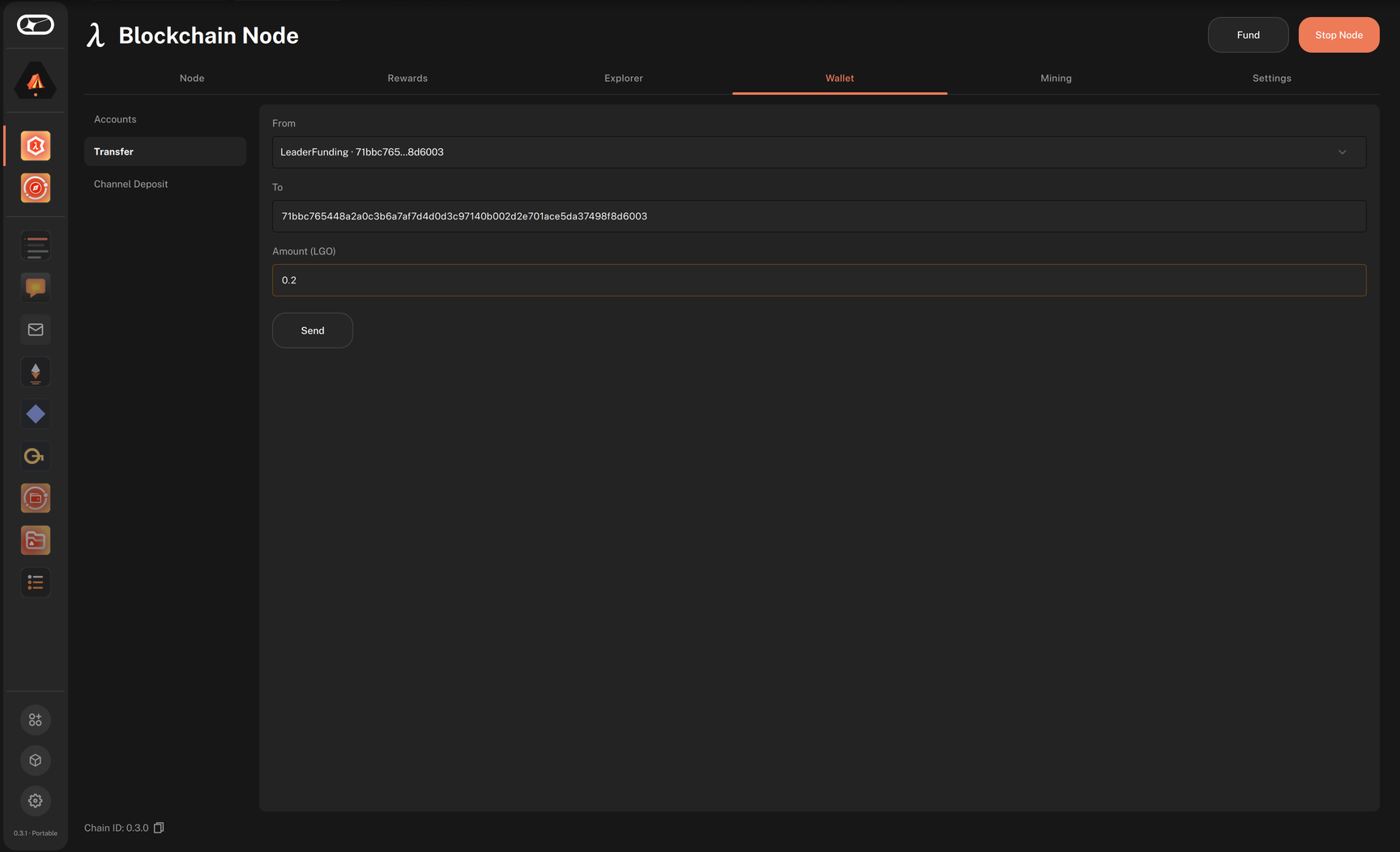
Click the Wallet tab, then click Transfer in the left menu.
- While the node cannot answer, a notice at the top of the form says why, for example
Start the node from the Node tab.orThe node is still catching up.
- While the node cannot answer, a notice at the top of the form says why, for example
-
Select the sender account in the From dropdown.
- Each account shows its name, address, and balance.
- The balance of the selected account appears as Available: next to the Amount (TestToken) label.
-
Enter the recipient's public key in the To field.
-
Enter the amount to send, in TestToken, in the Amount (TestToken) field.
- If the amount is more than the account holds, the form shows
More than this account holds.and Send stays disabled.
- If the amount is more than the account holds, the form shows
-
Click Send.
warningTransfers are irreversible; double-check the 64-hex recipient key and the amount before clicking Send.
Read the transfer result
-
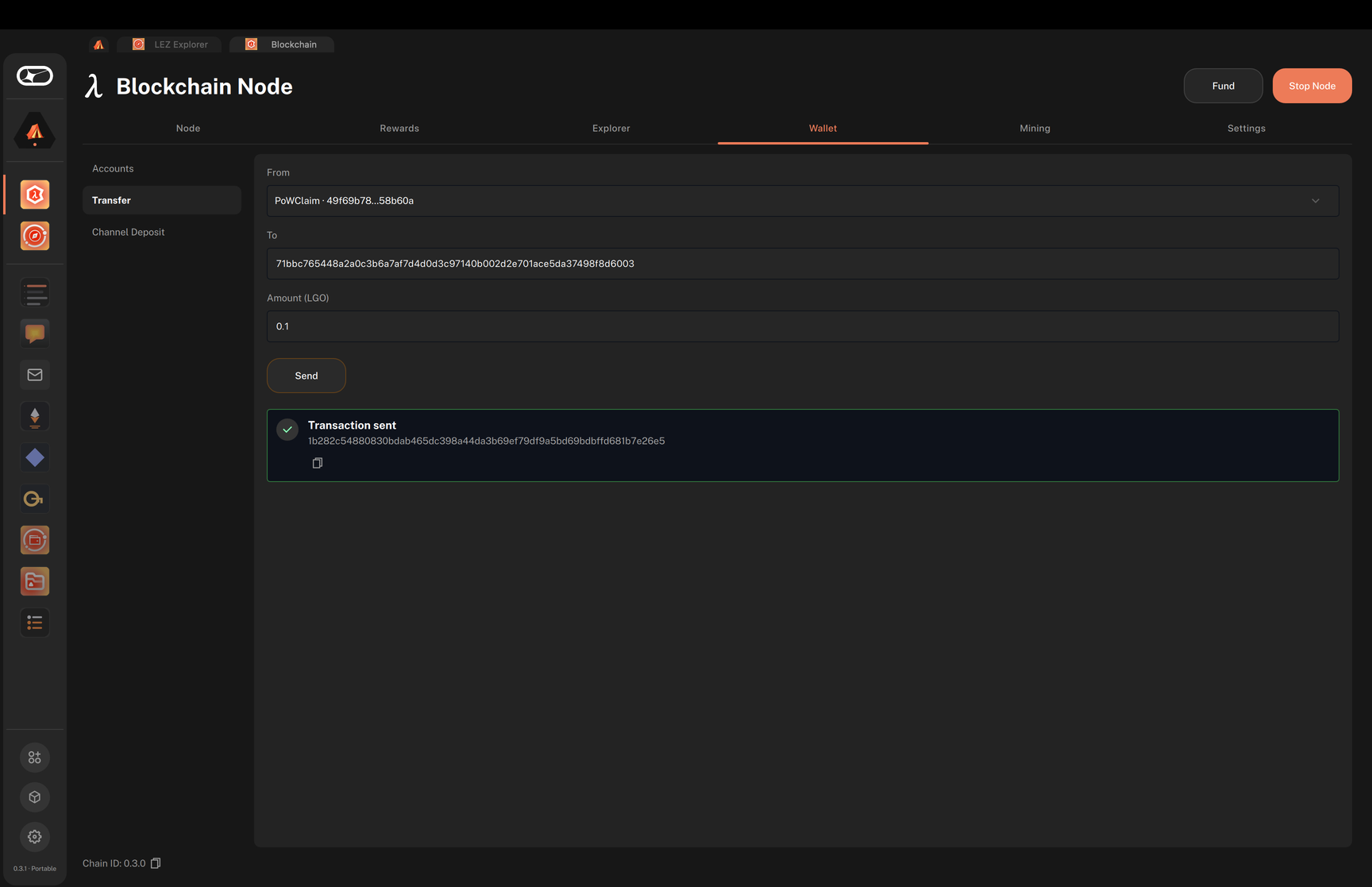
Check the notice below the Send button:
- On success, it reads Transaction sent and shows the transaction hash returned by the module. Click the copy button to copy it to the clipboard.
- On failure, it reads Transfer failed and shows
Error: <message>with the reason.
-
Confirm that the transaction is on chain, either in the app or on the web:
-
In the app, open the Explorer tab, paste the hash in Search a block id or transaction hash, and press Enter. The result shows the Transaction and the block slot it was included in. If it reads
Nothing found for “<hash>”., the transaction is not in a block yet. Wait for a few blocks and search again.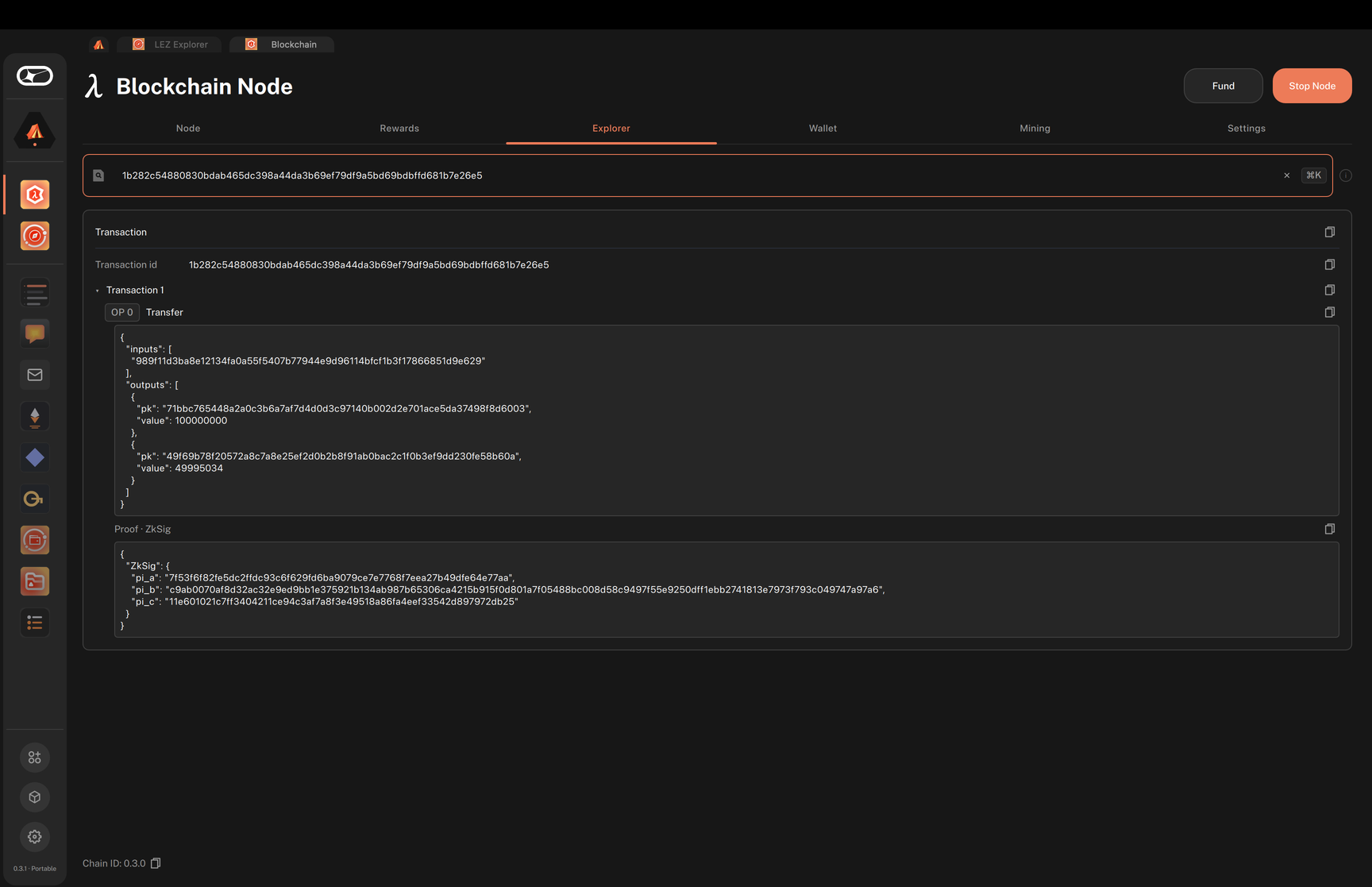
-
In your browser, go to
https://testnet.blockchain.logos.co/web/explorer/transactions/<TX_HASH>, replacing<TX_HASH>with the hash. The testnet block explorer shows the block that includes the transaction, and its operation as LedgerTransfer. If it reads Transaction not found, wait for a few blocks and reload the page.
-
-
Open Wallet > Accounts and click Refresh to confirm that the sender's balance has decreased.
Troubleshooting dashboard transfers
The Send button stays disabled
Send needs a running node, a sender account, a recipient key, and an amount that the account can cover. Start the node from the header if the notice at the top of the form asks you to, then check each field.
The result shows Error: Module not initialized.
The app's connection to the blockchain module did not initialise at startup. Restart the app and try again.
The result shows another Error: …
The module rejected the transaction. Common causes are an insufficient balance to cover the amount and fee, or an invalid recipient key. Verify that the recipient key is exactly 64 hex characters, then retry.