Install and load a module in Basecamp
Access features and functionalities through modules in Logos Basecamp.
This document is accurate for Testnet v0.3.
In Logos Basecamp, you can install and load modules that provide features like chat, storage, or wallets from the online catalogue or local .lgx files.
There are two types of modules in Logos Basecamp. Core modules are the headless background services that provide capabilities like messaging or storage, while UI modules are the visual front-ends users interact with. Both kinds of modules are packaged and distributed as packages.
- Basecamp installed and running.
- Internet access for online catalogue install.
- An
.lgxfile for local install. Make sure that the archive contains a variant matching your platform.
What to expect
- You can install a module from the online catalogue or from a local
.lgxfile. - You can choose where Basecamp downloads packages from: the Logos Storage network, HTTPS, or either.
- You can load or unload a module from Settings: core modules under Module Inspector, UI modules under Apps Inspector.
- You can read a loaded module's status, CPU, and memory in Settings > Module Inspector. Apps Inspector shows a UI module's status and version, without live resource usage.
An introduction to modules in Logos Basecamp is available in video form:
Step 1: Install the module package
When installing a module, Logos Basecamp extracts the variant for your platform into your user modules directory (core modules) or user plugins directory (UI modules).
Install from the online catalogue
- At the bottom of the sidebar, click Package Manager.
- Browse and locate the module you want. Use the Categories and Types filters or the search box. The Type column shows
corefor core modules andui_qmlfor UI modules. Click a row to open its Details panel on the right. - Click INSTALL on the module's row. An Install Package? dialogue opens and lists any dependency changes. Click Install to confirm.
- Wait until the row's Action column reads
INSTALLED. Core modules then appear in Settings > Module Inspector. UI modules appear in the sidebar and in Settings > Apps Inspector.
How Basecamp downloads a package
Basecamp ships with the storage_module module, which runs a Logos Storage node. A catalogue can publish a package version on Logos Storage with a logos: address, as well as over HTTPS.
- When a package with the desired version is available on the Logos Storage network and the Storage node is running, Basecamp downloads the package from Logos Storage.
- When the Storage node is stopped,
storage_moduleis not loaded, or the node is on another network than the catalogue, Basecamp downloads the package from the HTTPS URL. - If the Logos Storage download takes too long, Basecamp stops it and downloads the package from the HTTPS URL.
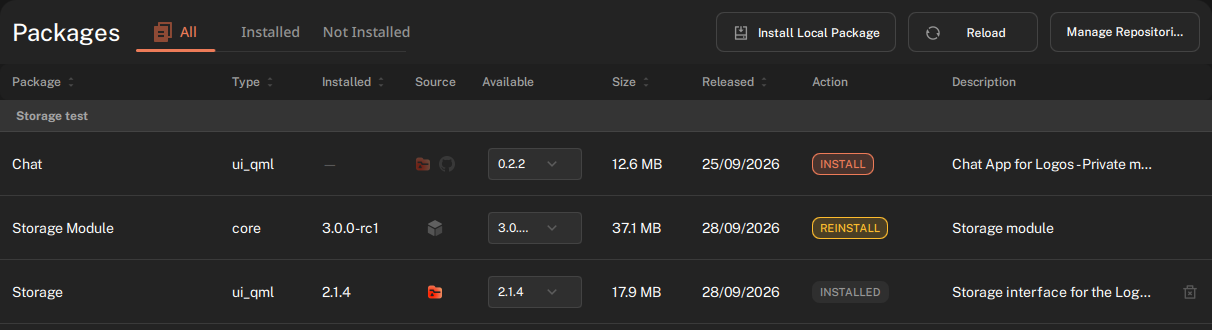
The Source column of Package Manager shows where a package comes from. For a package that is not installed, it shows an icon for each source from which the package is available for download. For an installed package, it shows the source it was downloaded from. Hover over an icon to see the name of the package source.
Choose the download source
-
At the bottom of the sidebar, click Settings
 , then click Package Repositories.
 -
Under Download source, pick one value:
- Any: Logos Storage when possible, HTTPS otherwise.
- Logos only: only Logos Storage.
- HTTP only: only the HTTPS URL.
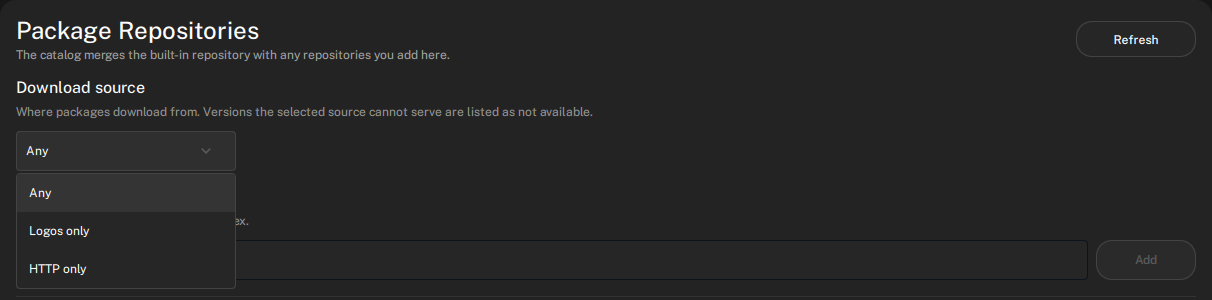
If the selected source cannot serve a version, Package Manager shows it as Not available and you cannot install it.
Install from a local .lgx file
- At the bottom of the sidebar, click Package Manager.
- Click Install Local Package.
- Select the
.lgxfile, click Open, then click Install in the Install Package? dialogue. - Core modules appear in Settings > Module Inspector. UI modules appear in the sidebar and in Settings > Apps Inspector.
Step 2: Load the module
Loading a module turns an installed module into a running service you can actually use. Each loaded Logos module runs in its own logos_host process, so memory usage increases with the number of loaded modules.
- At the bottom of the sidebar, click Settings , then click Module Inspector, or Apps Inspector for a UI module.
- Find the module in the list. Its Status column reads
NOT LOADED. - Click Load next to the module. The status changes to
LOADEDand the CPU and Memory columns start reporting.
To open a UI module, click its icon in the sidebar.
You can click Unload in Settings > Module Inspector or close the tab of a module to unload it. Unloading stops the module's host process but not its dependencies, which may still be in use by other modules or UI Apps.
Troubleshooting
The installed module doesn't appear in Module Inspector or Apps Inspector
Confirm the module actually installed: check its status in Package Manager.
- If installing from the online catalogue: if a package's row shows Not available instead of Install, it has no build for your platform, build type (dev, portable, or release), or architecture, or the download source you selected cannot serve it.
- If installing from a local
.lgxfile: Basecamp reports an error if the archive has no variant for your platform.
Either way, confirm the archive includes a variant matching your platform before reinstalling. If the package shows as installed in Package Manager but still doesn't appear in the relevant inspector, its manifest type may not match where you're looking—core modules only appear in Module Inspector, and UI modules (ui_qml) only appear in Apps Inspector.
A package downloads over HTTPS instead of Logos Storage
Basecamp uses Logos Storage only when the Logos Storage node can serve the package.
-
Open Settings > Package Repositories and check that Download source is not HTTP only.
-
Open Settings > Module Inspector and check that Storage Module (
storage_module) readsLOADED. If it doesn't, click Load.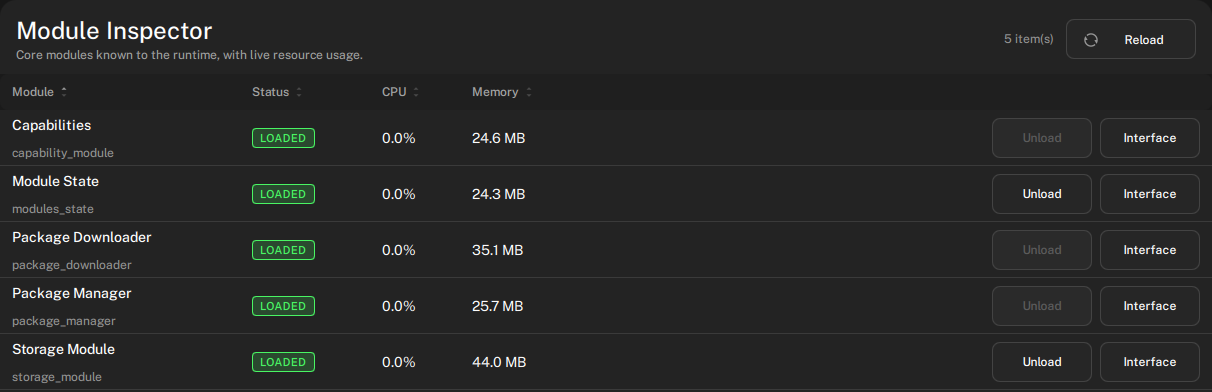
-
If you installed the Storage app, open it and check that the node is running. A package download will not begin if your Storage node is stopped.
A QML-based UI App cannot reach the network
By design, QML UI Apps run inside a sandboxed QML engine with a deny-all QNetworkAccessManager and a URL interceptor that whitelists only the app's own directory. To make network calls, route them through a Logos Module, which runs in its own unsandboxed process. Use logos.callModule("<module>", "<method>", [args]) from QML.